Go to Click here to download program
Select the server installation to install the database and/or workstation to download the program.
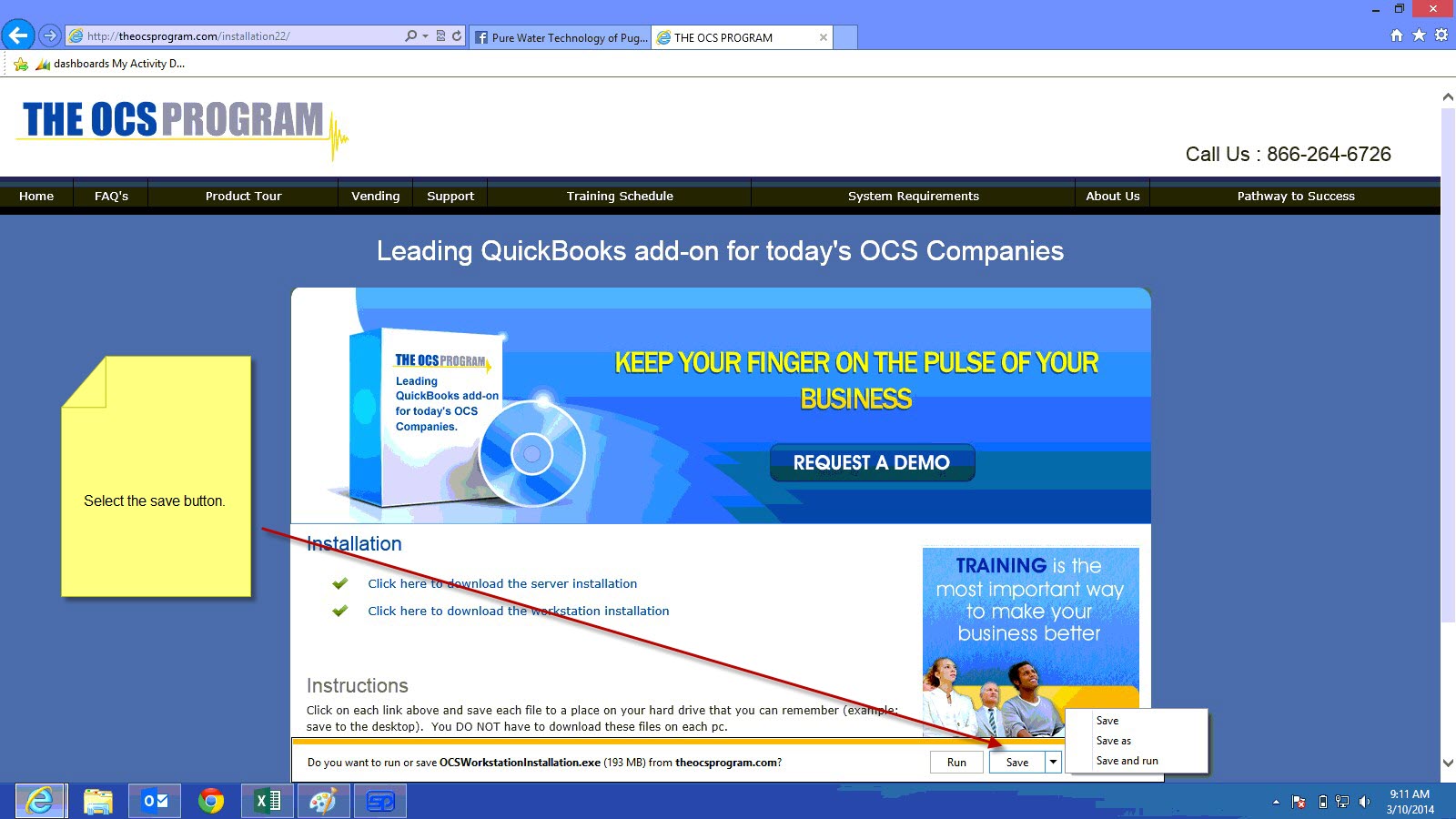
Select the save button and choose a location to save the file
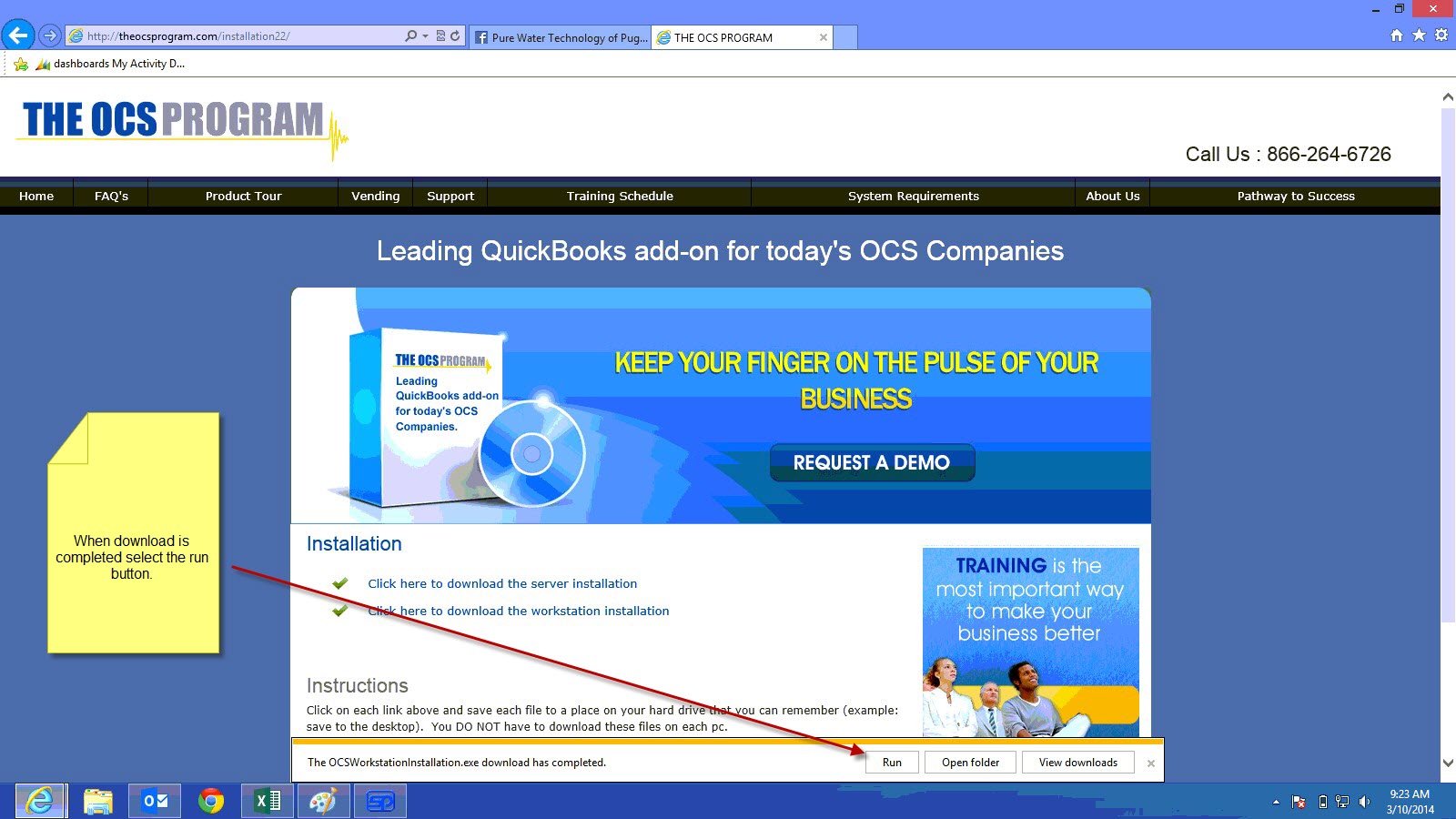
Once the download is completed, click the run button
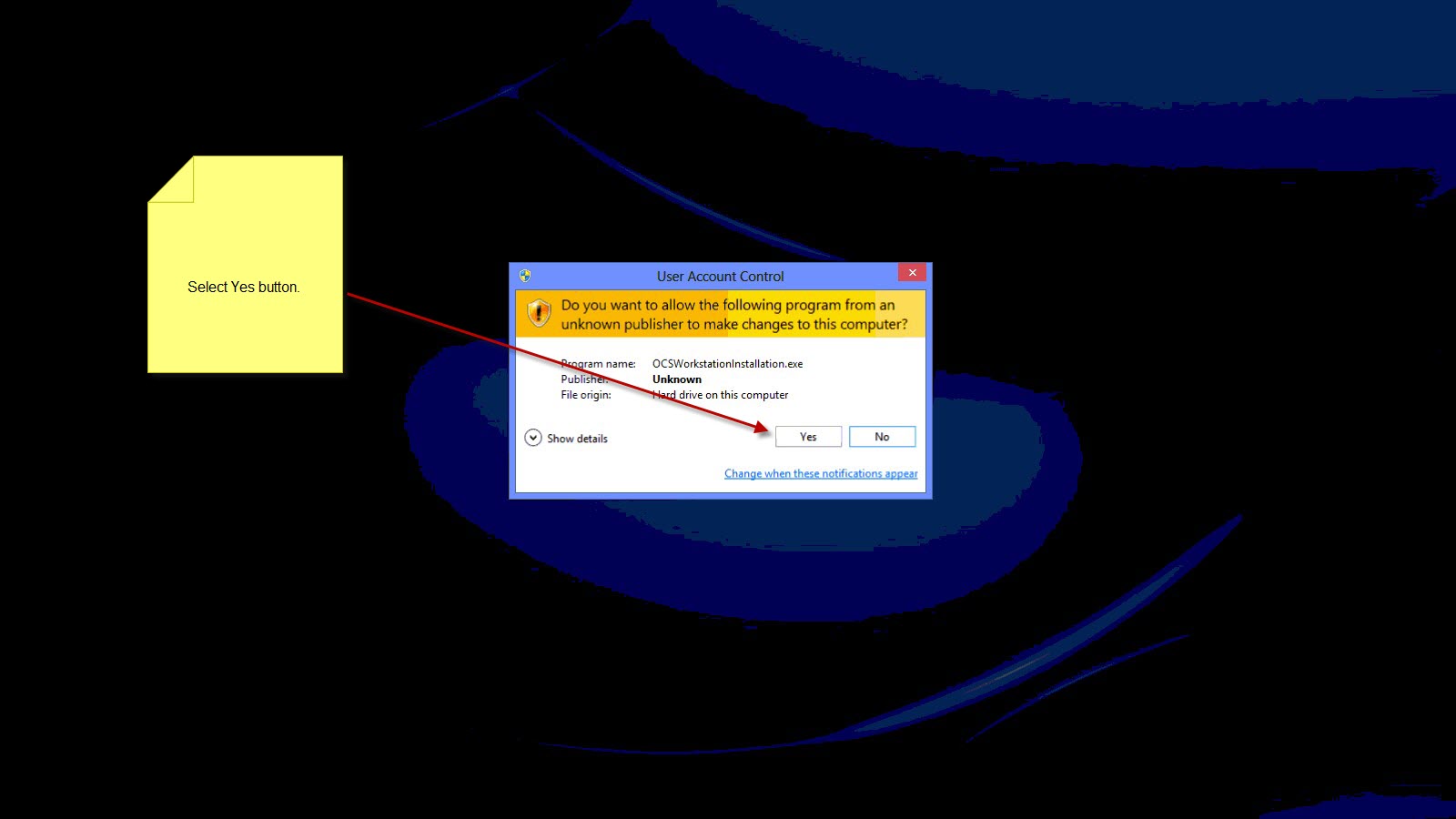
Click yes to the User Access Control Popup
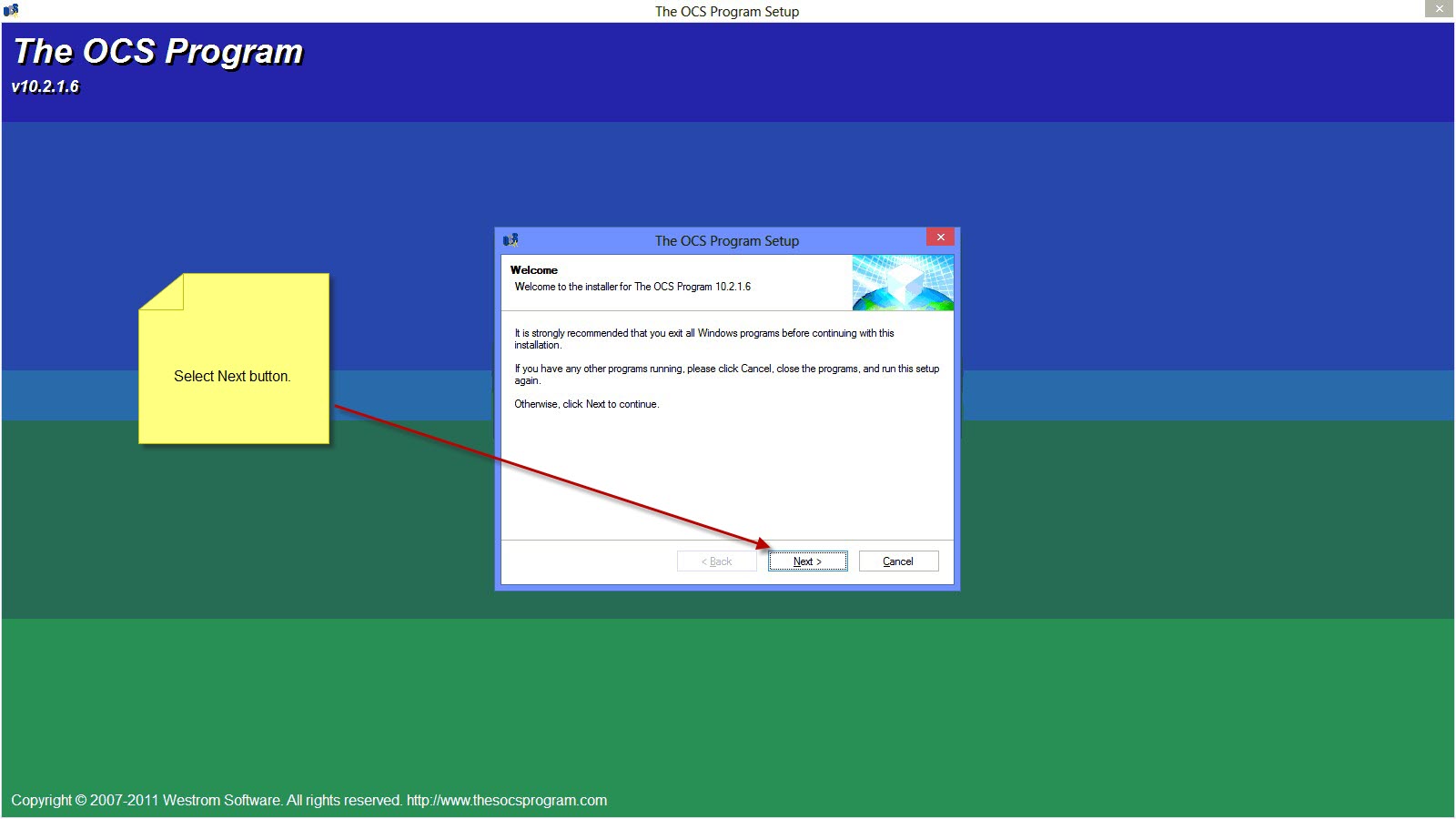
Click Next
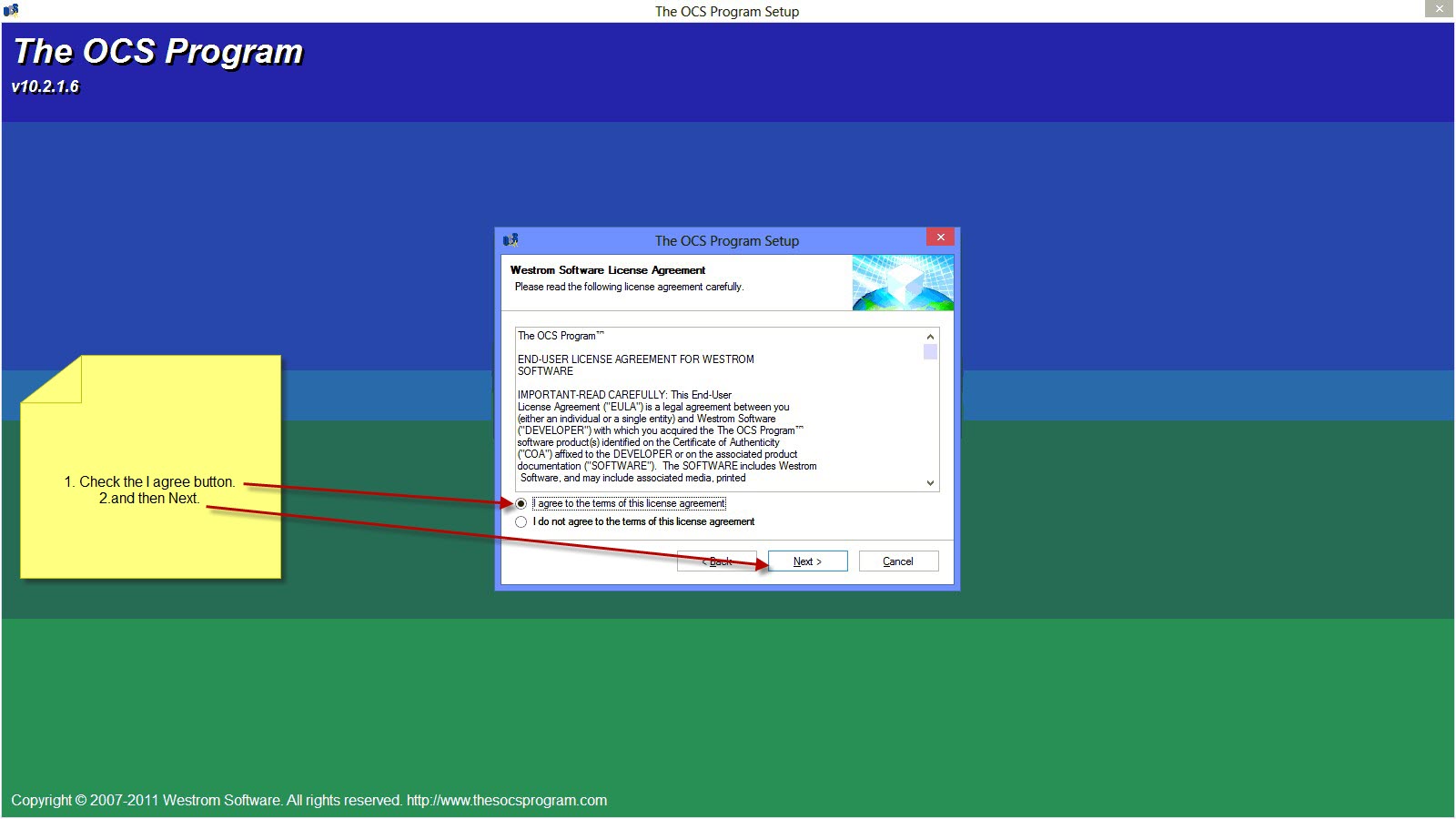
Select the radio button next to "I agree to the terms of this license agreement, then click next
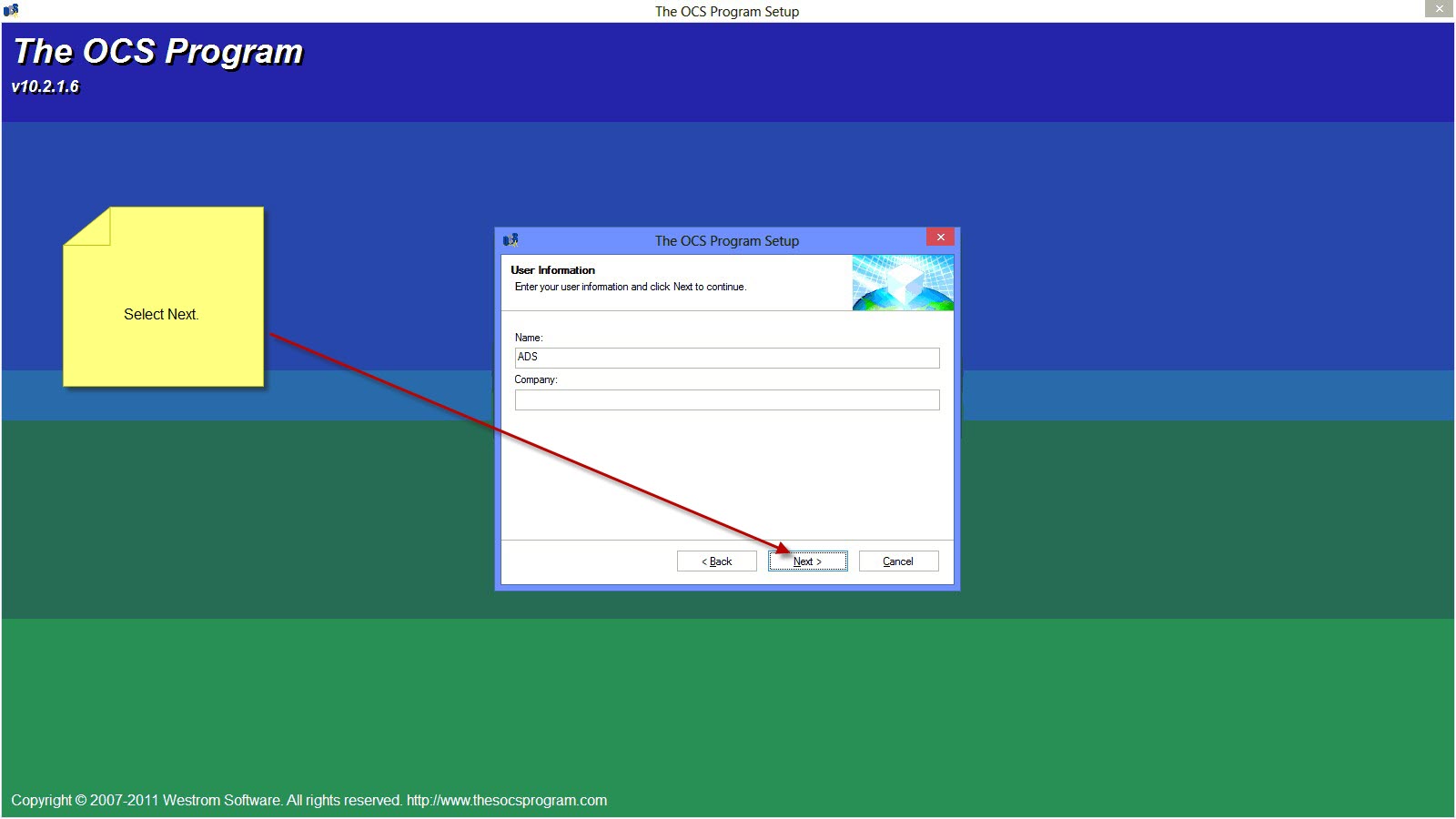
Click Next
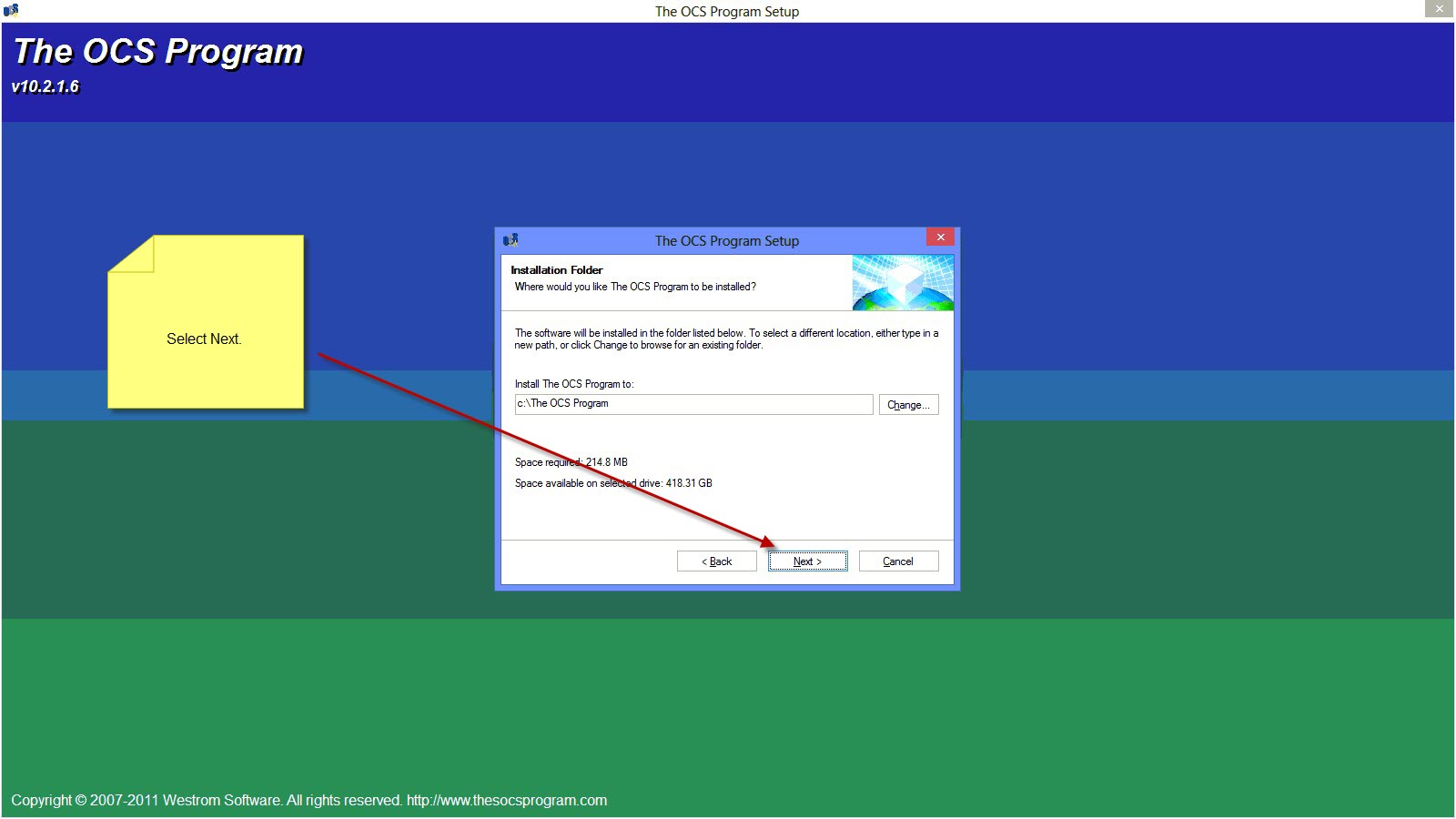
Click Next
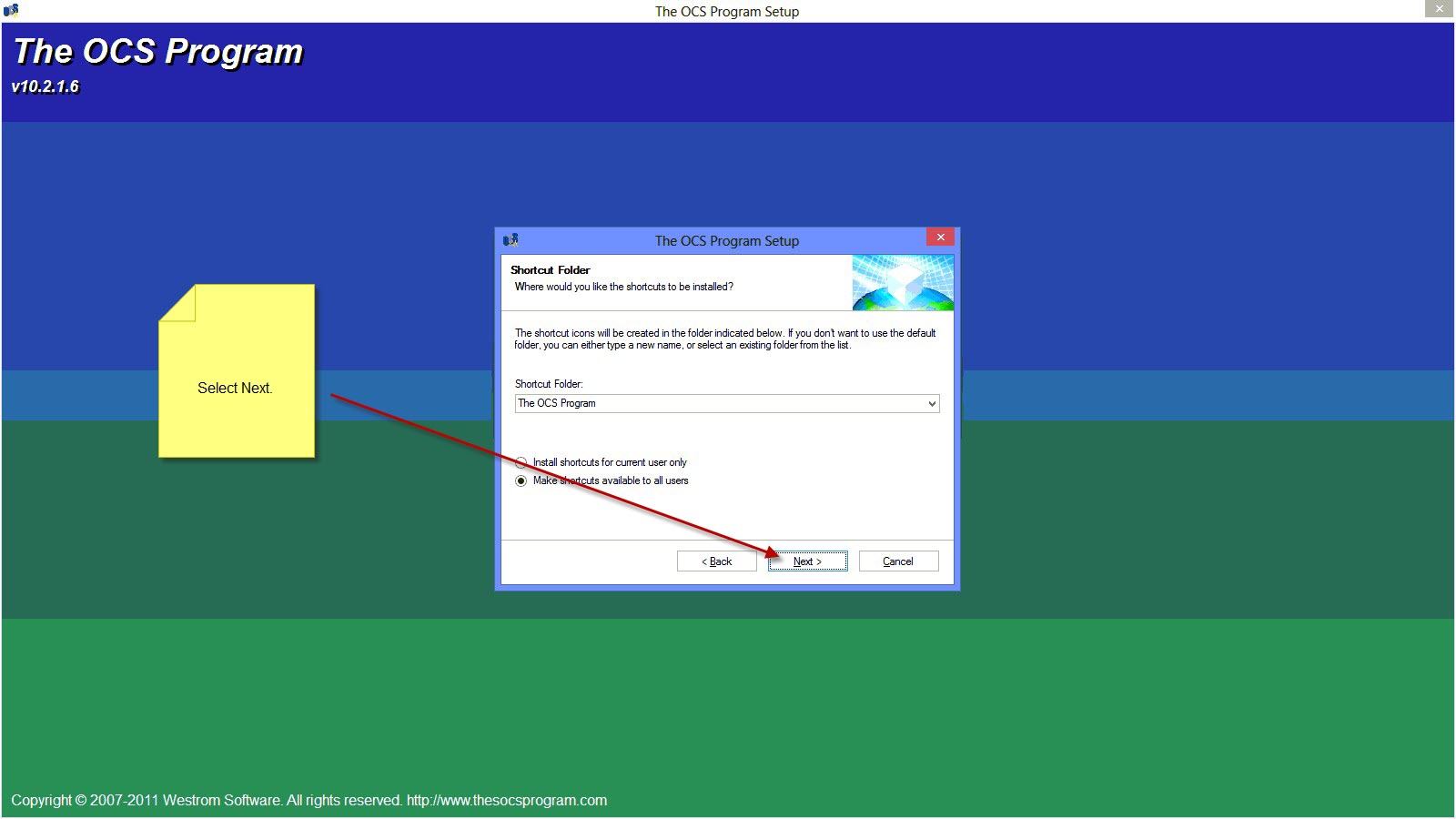
Click Next
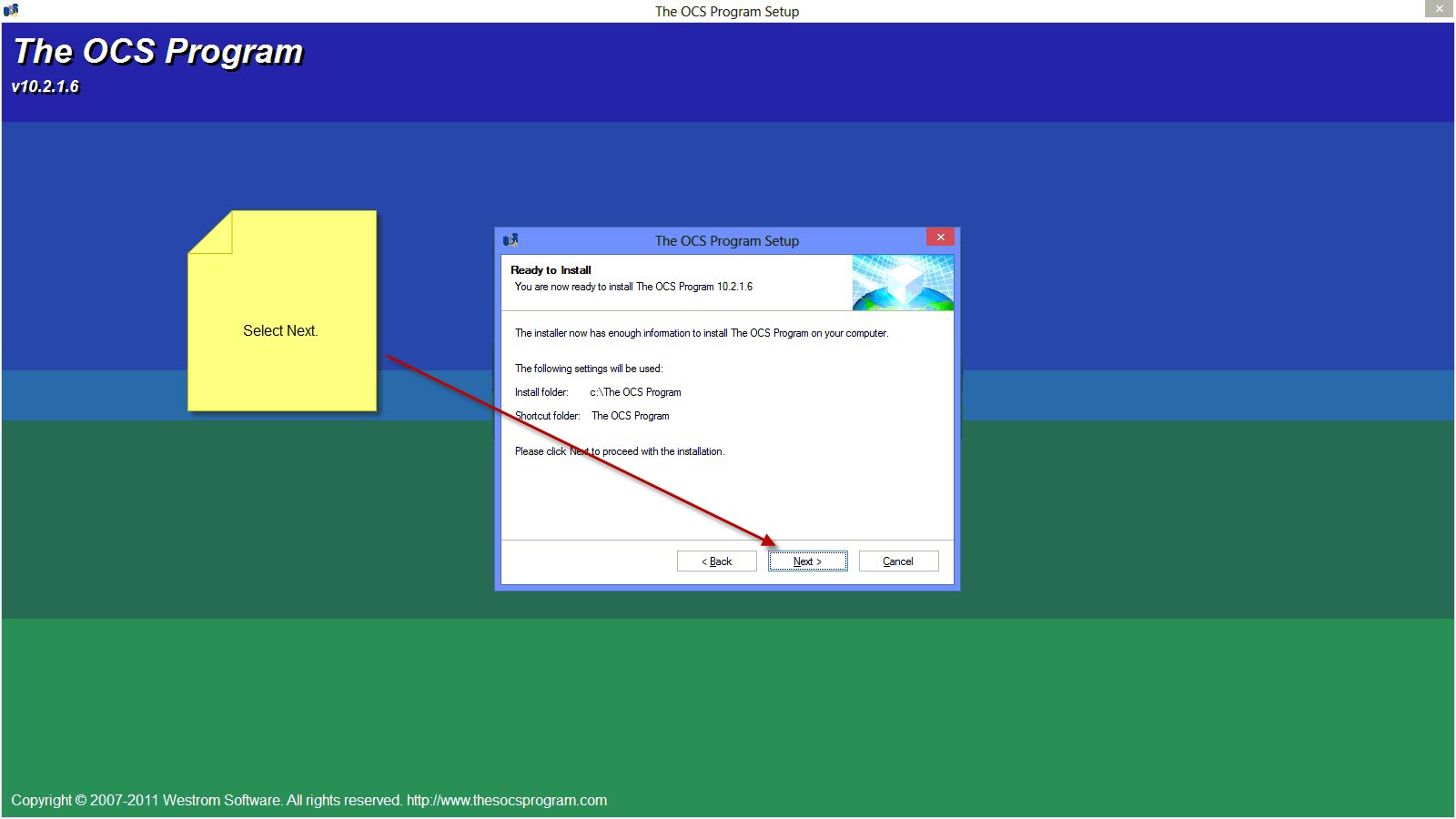
Click Next
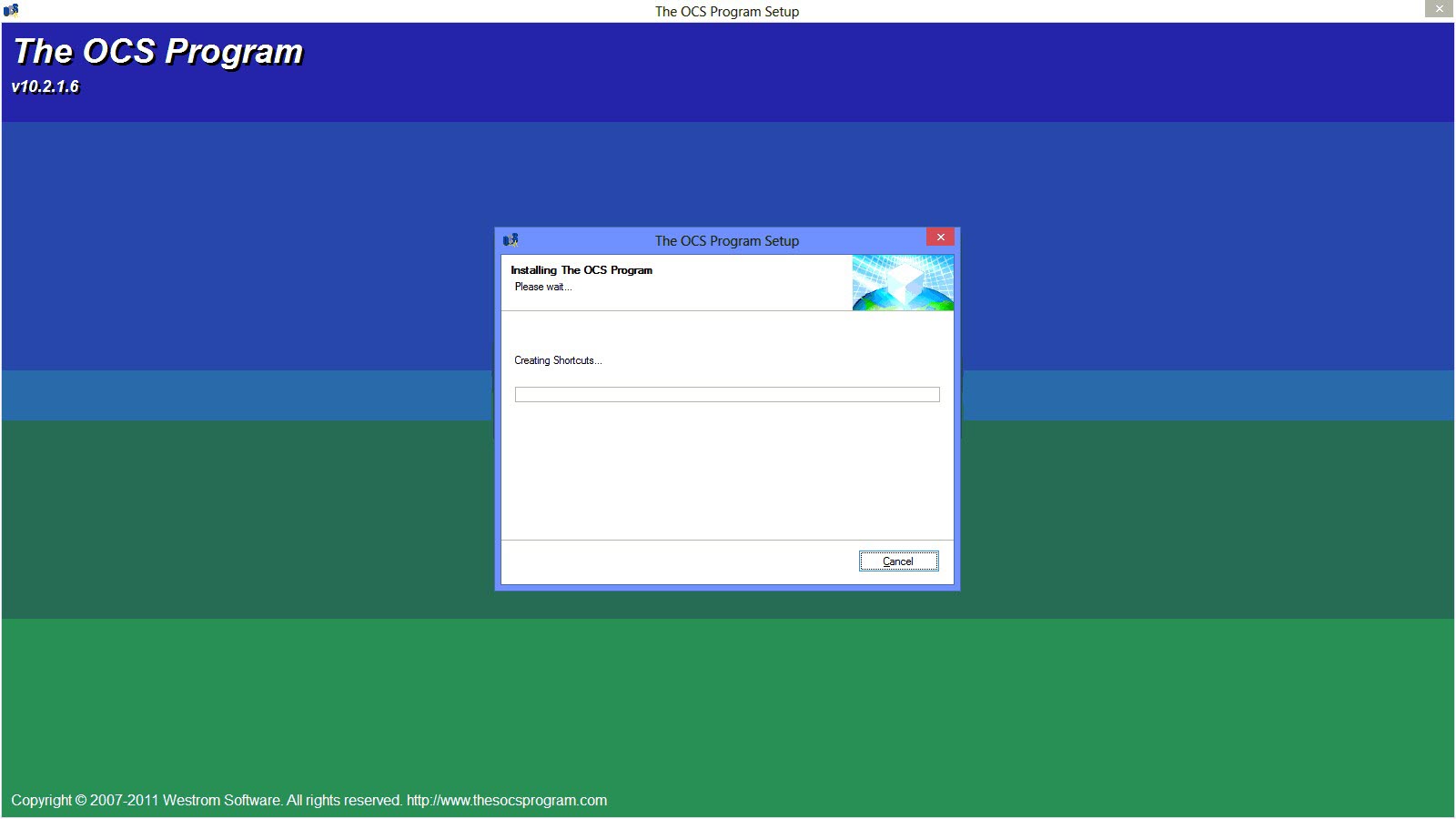
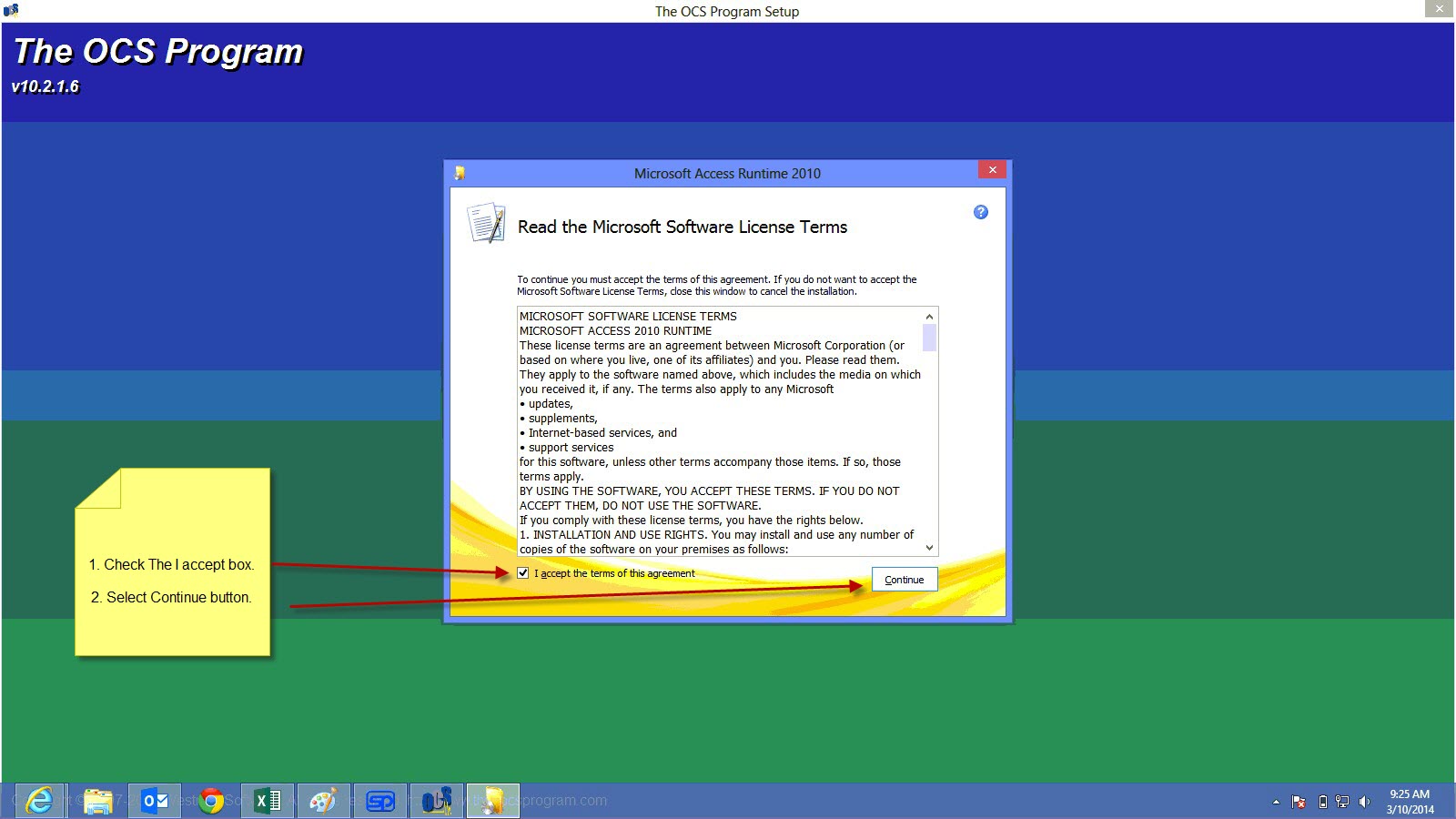 Check "I accept the terms of the agreement
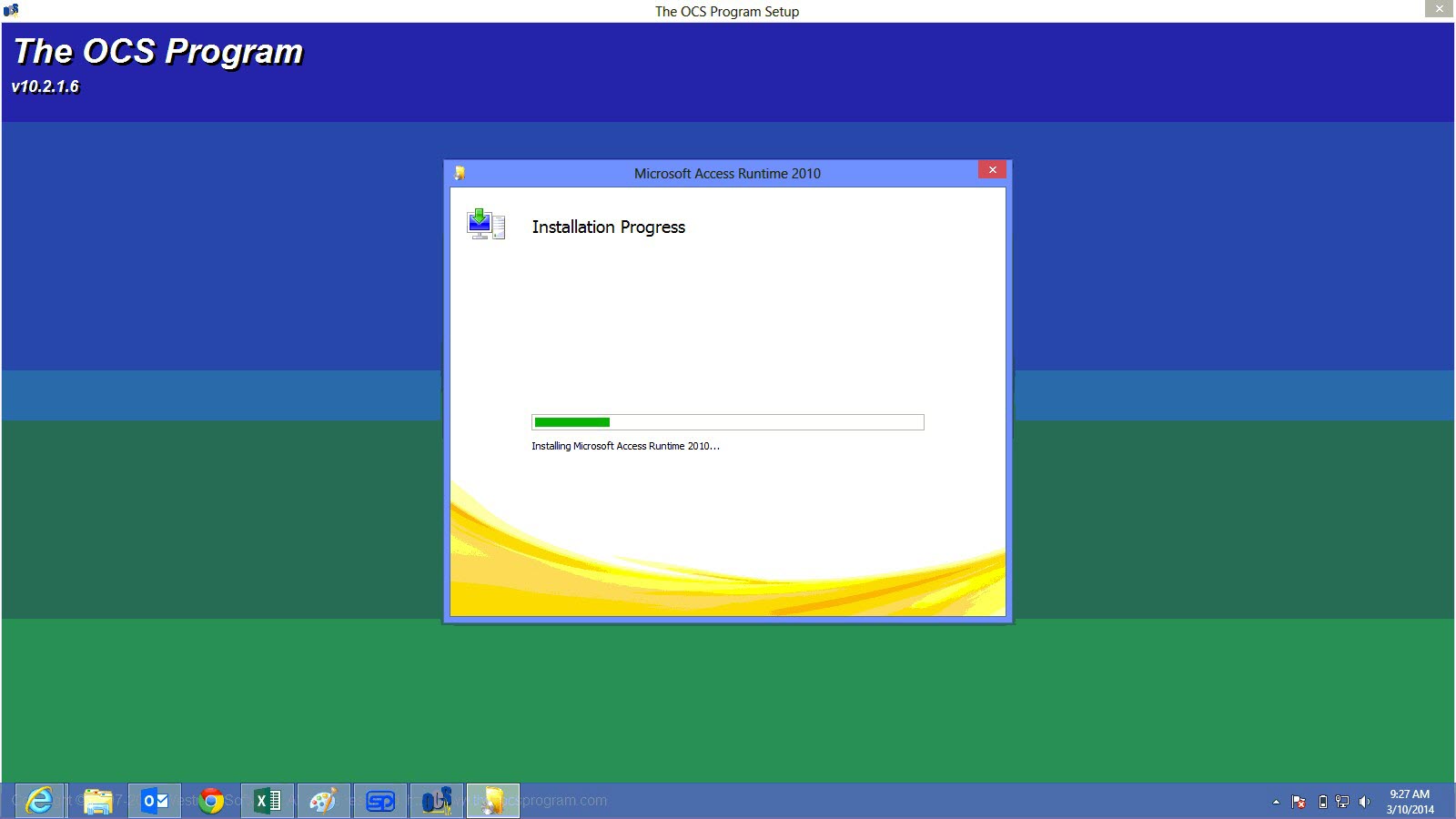
Wait while the installation of Access Runtime is installed
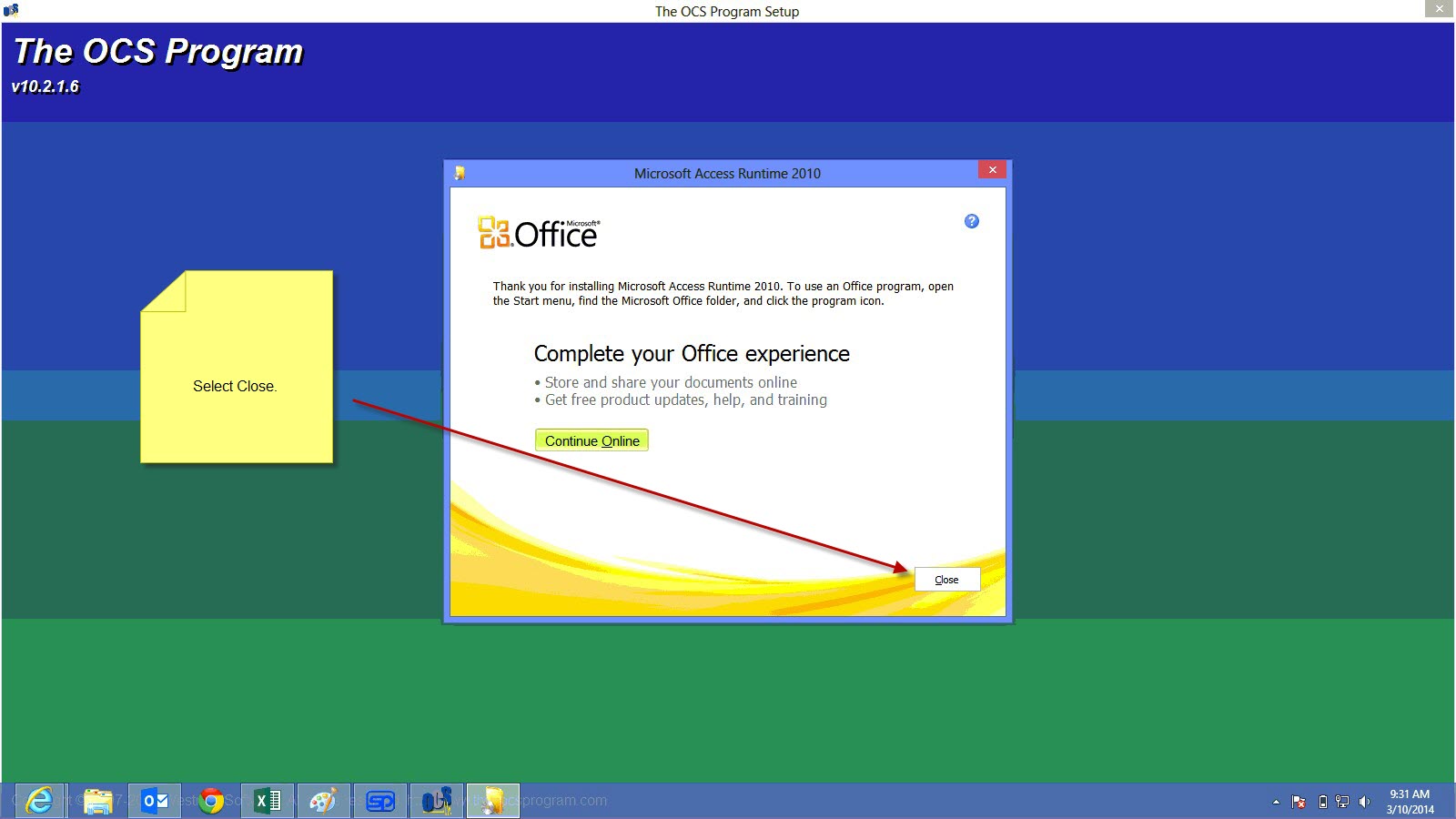
Click Close once completed
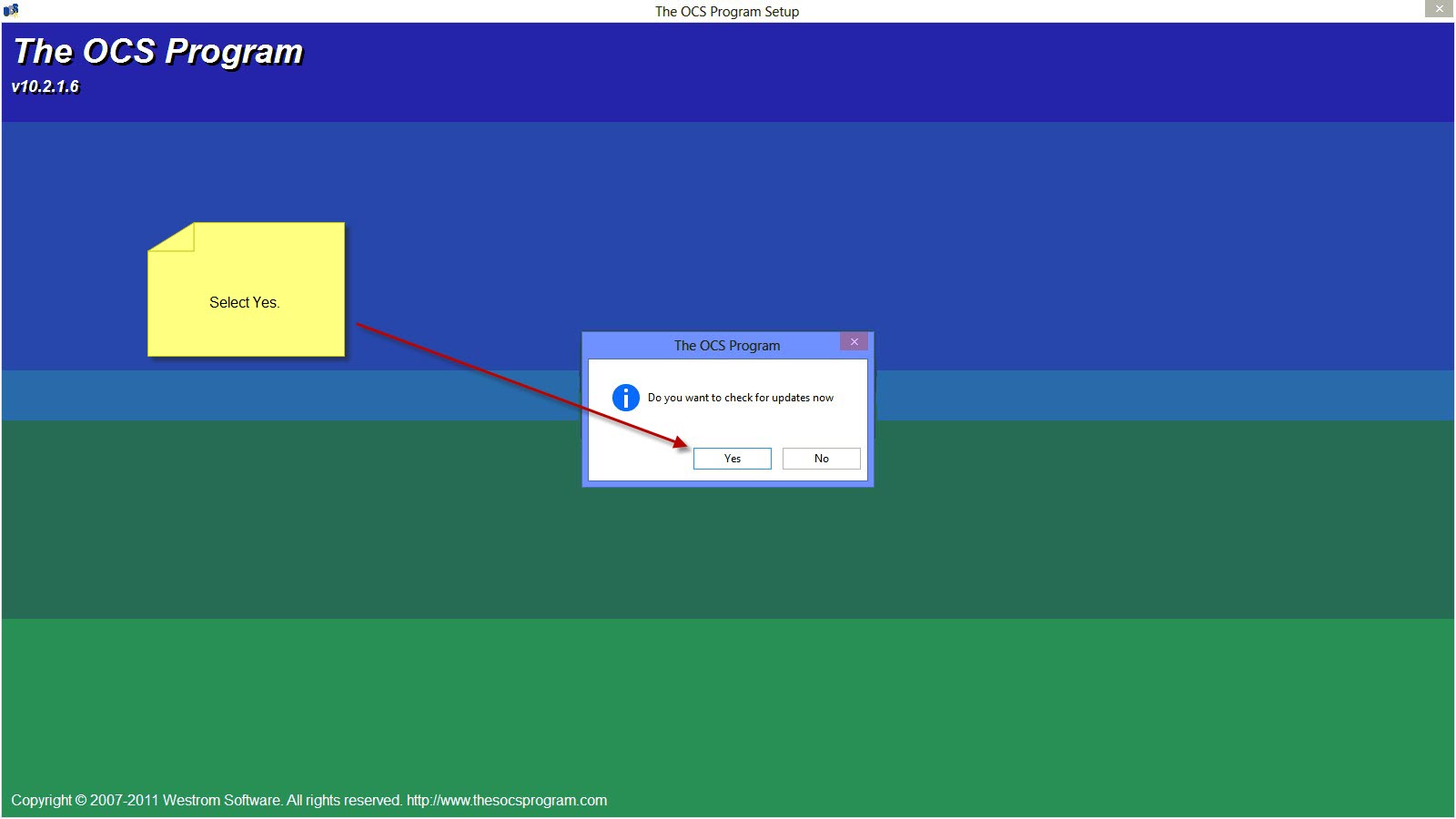
Click yes to check for updates
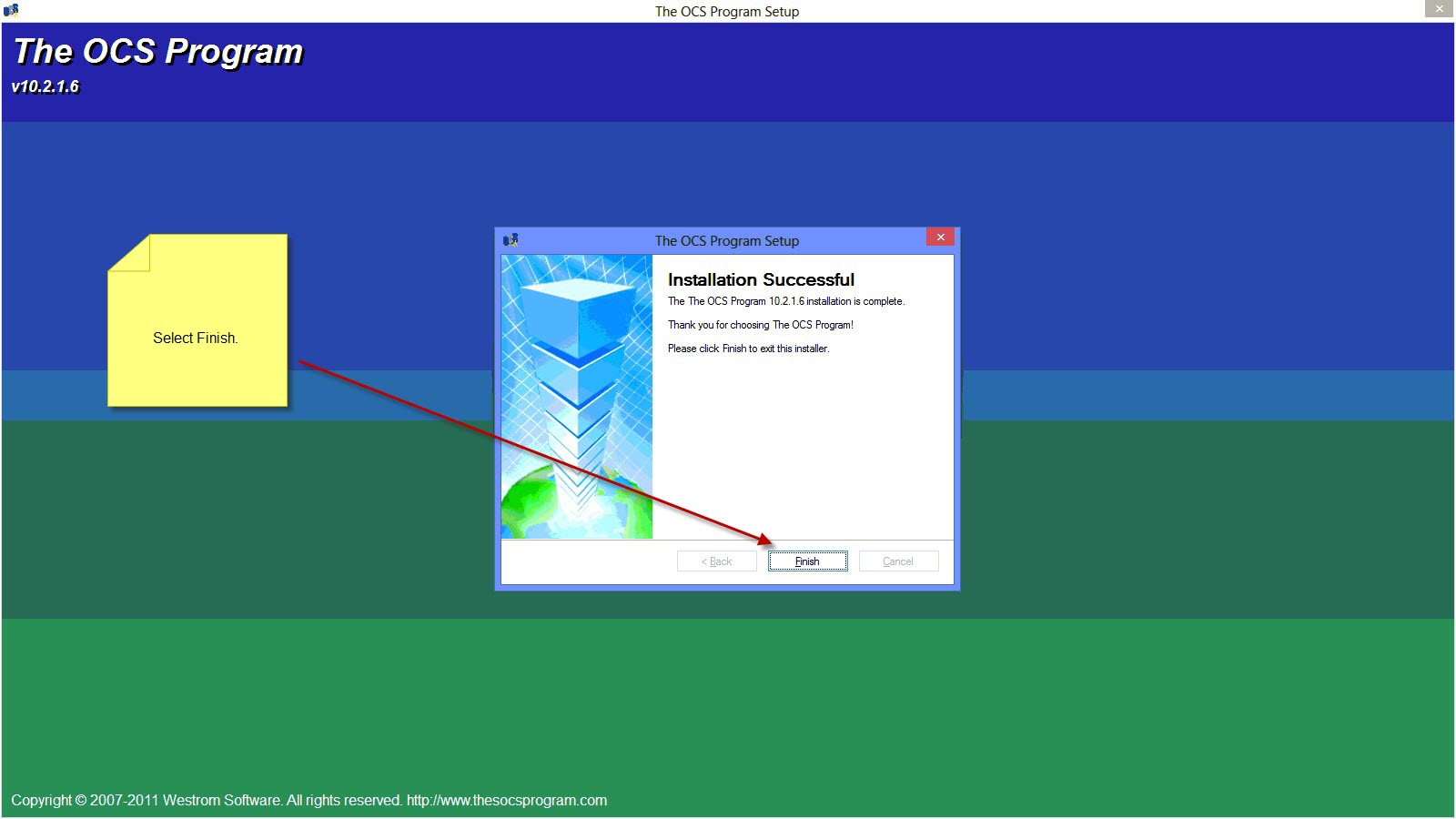
Click Finish
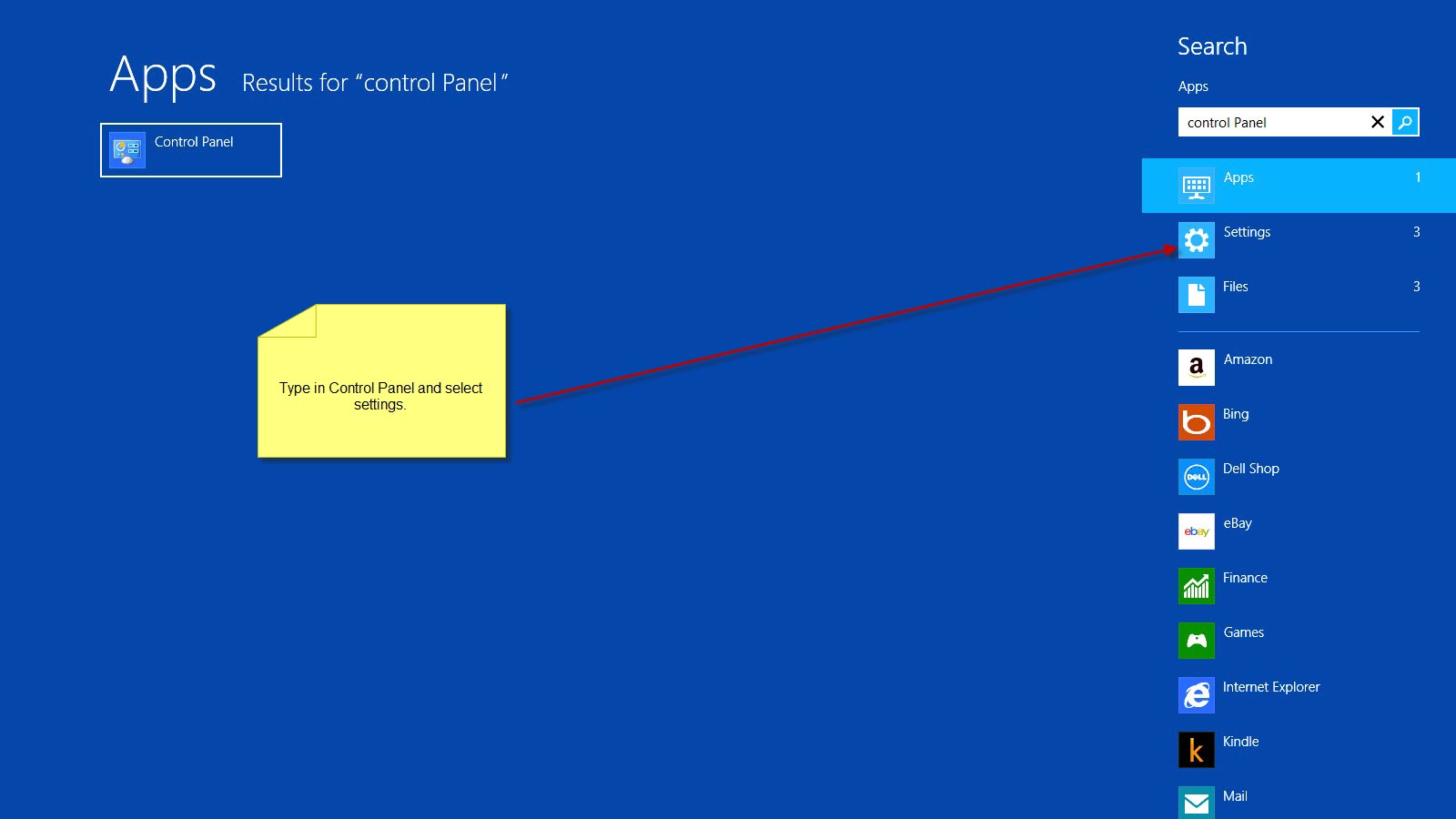
On the keyboard, hit the Windows key to bring up the Apps screen, then start typing Control Panel, and select settings

Select System and Security
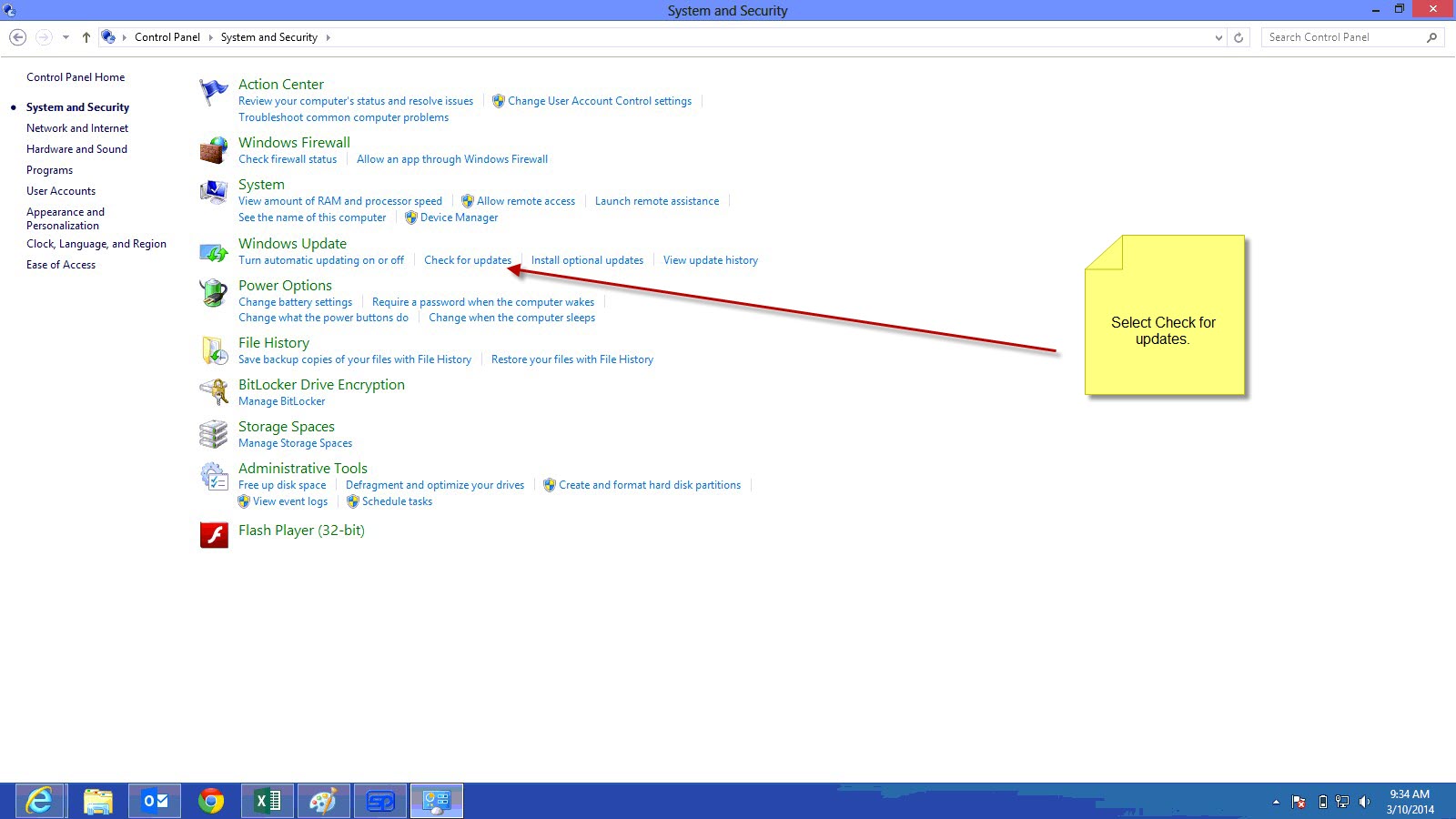
Under Windows Update, select Check for Updates
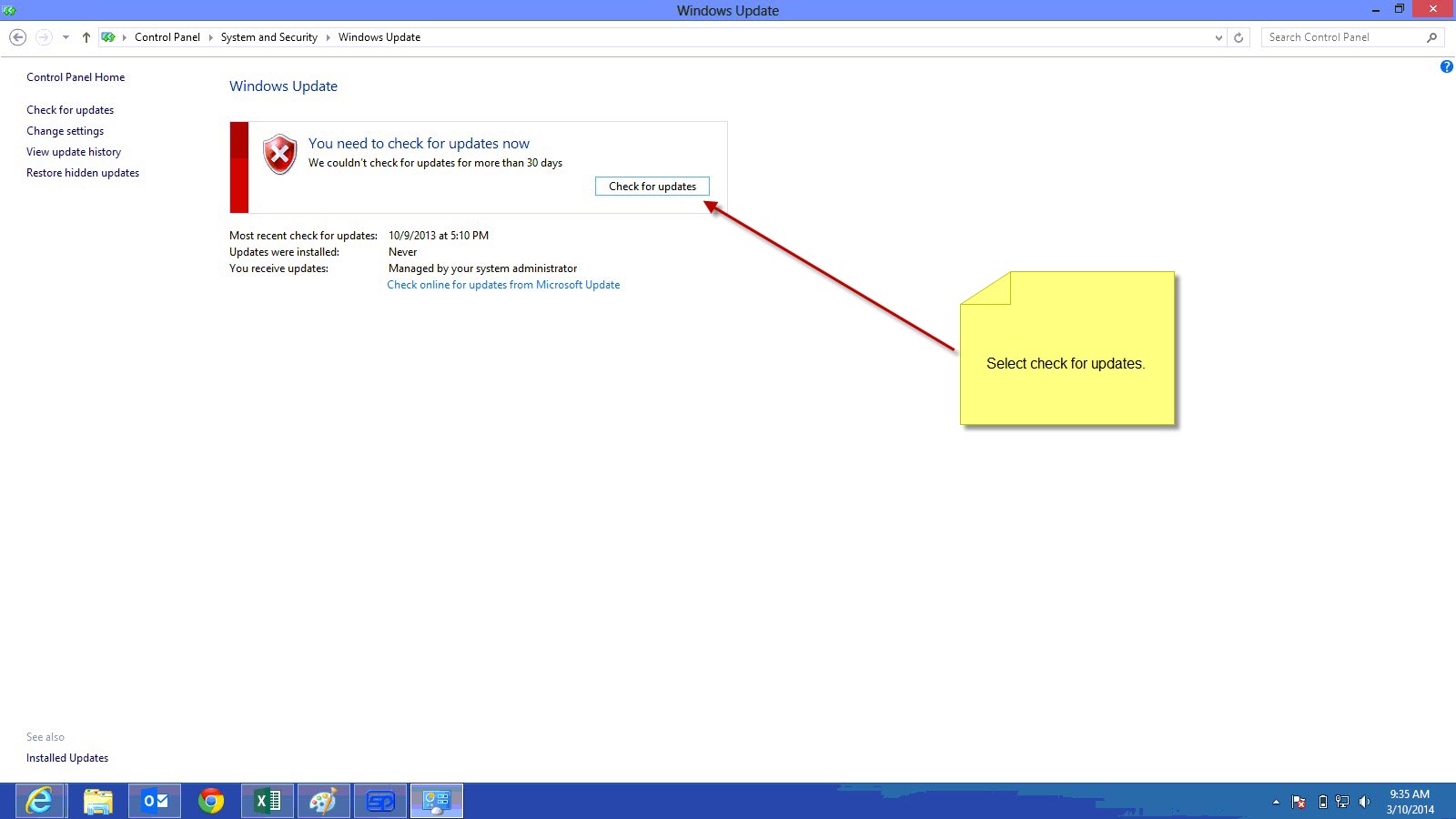
Select Check for Updates
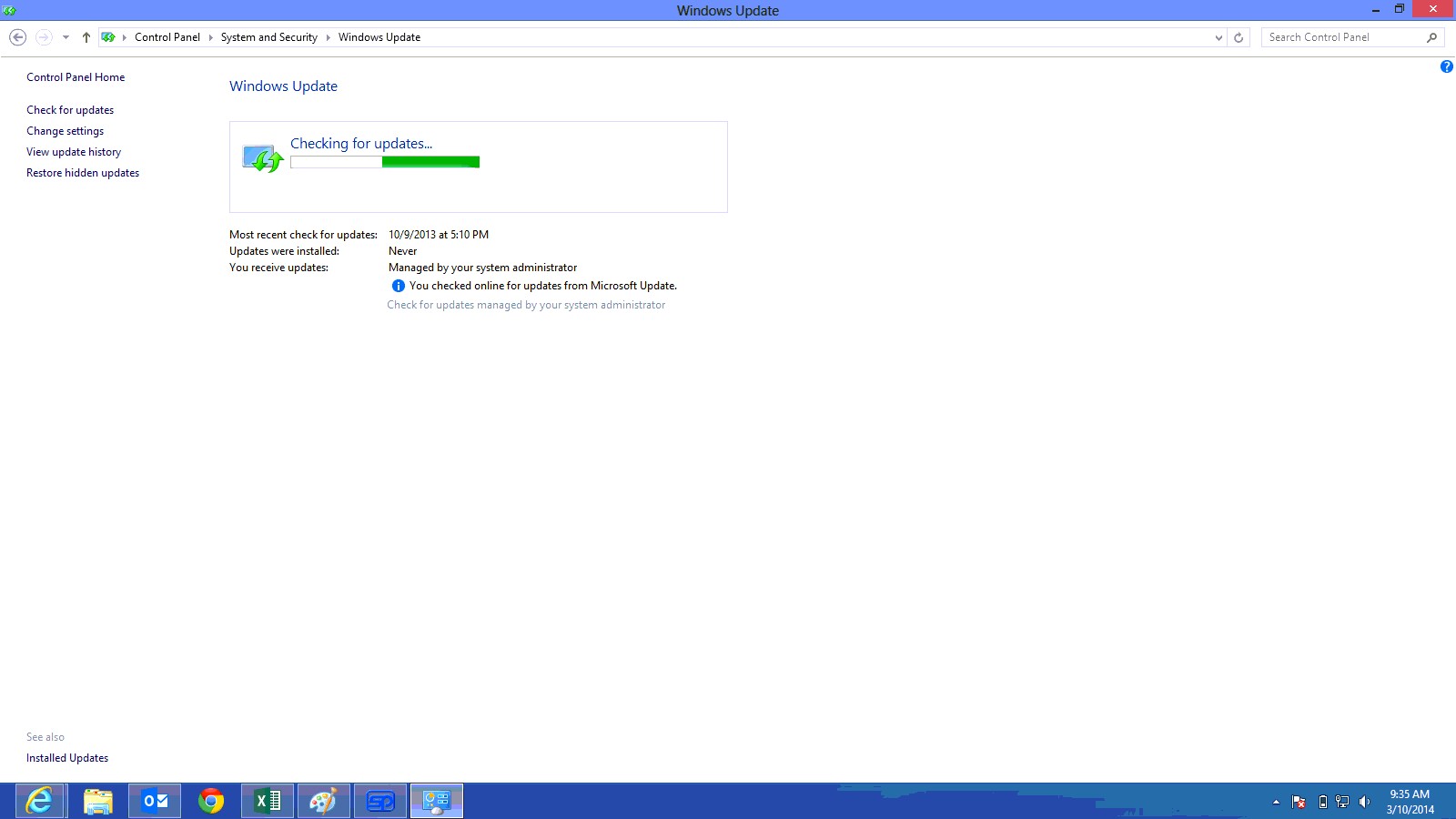
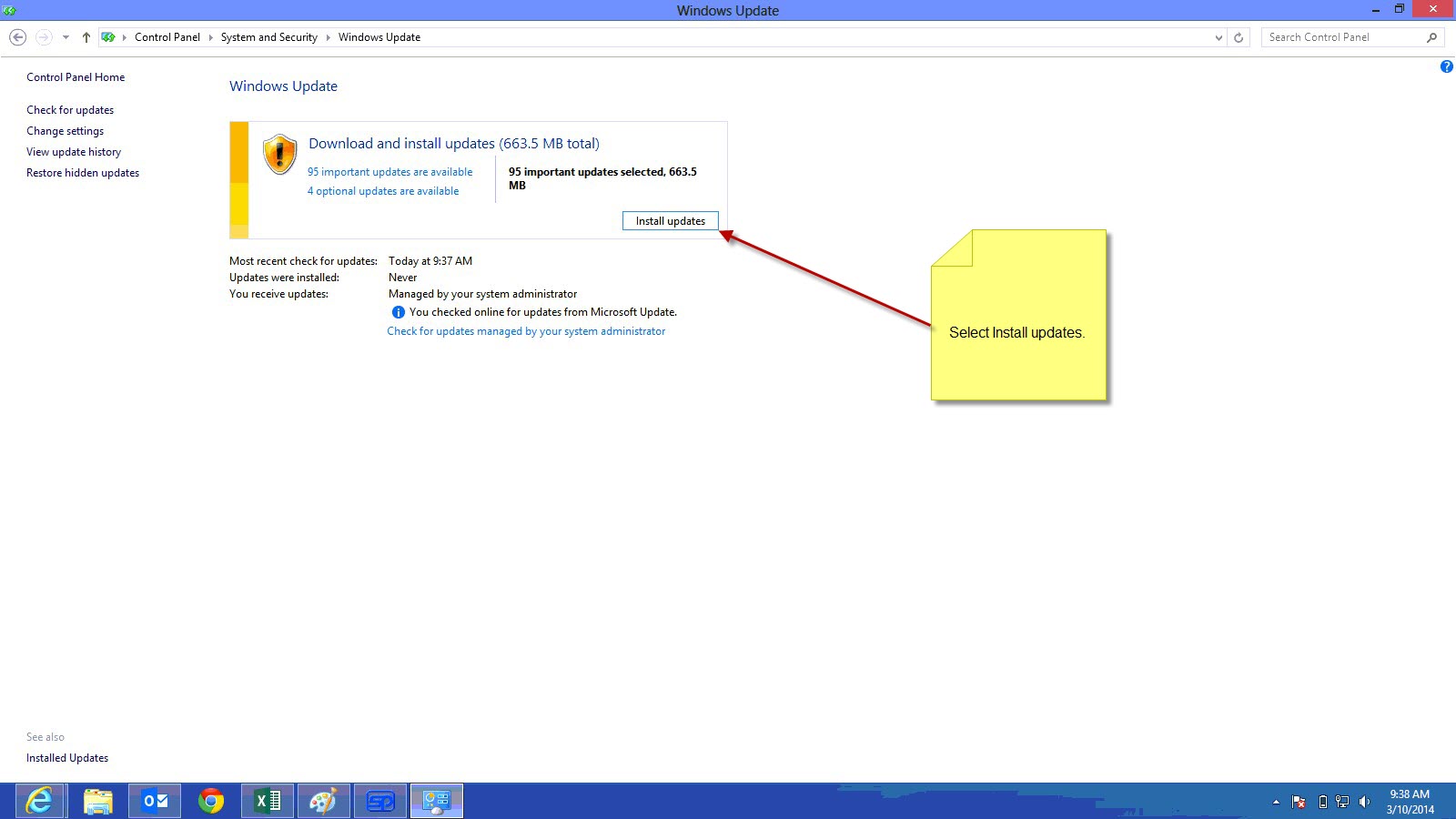
Select Install Updates
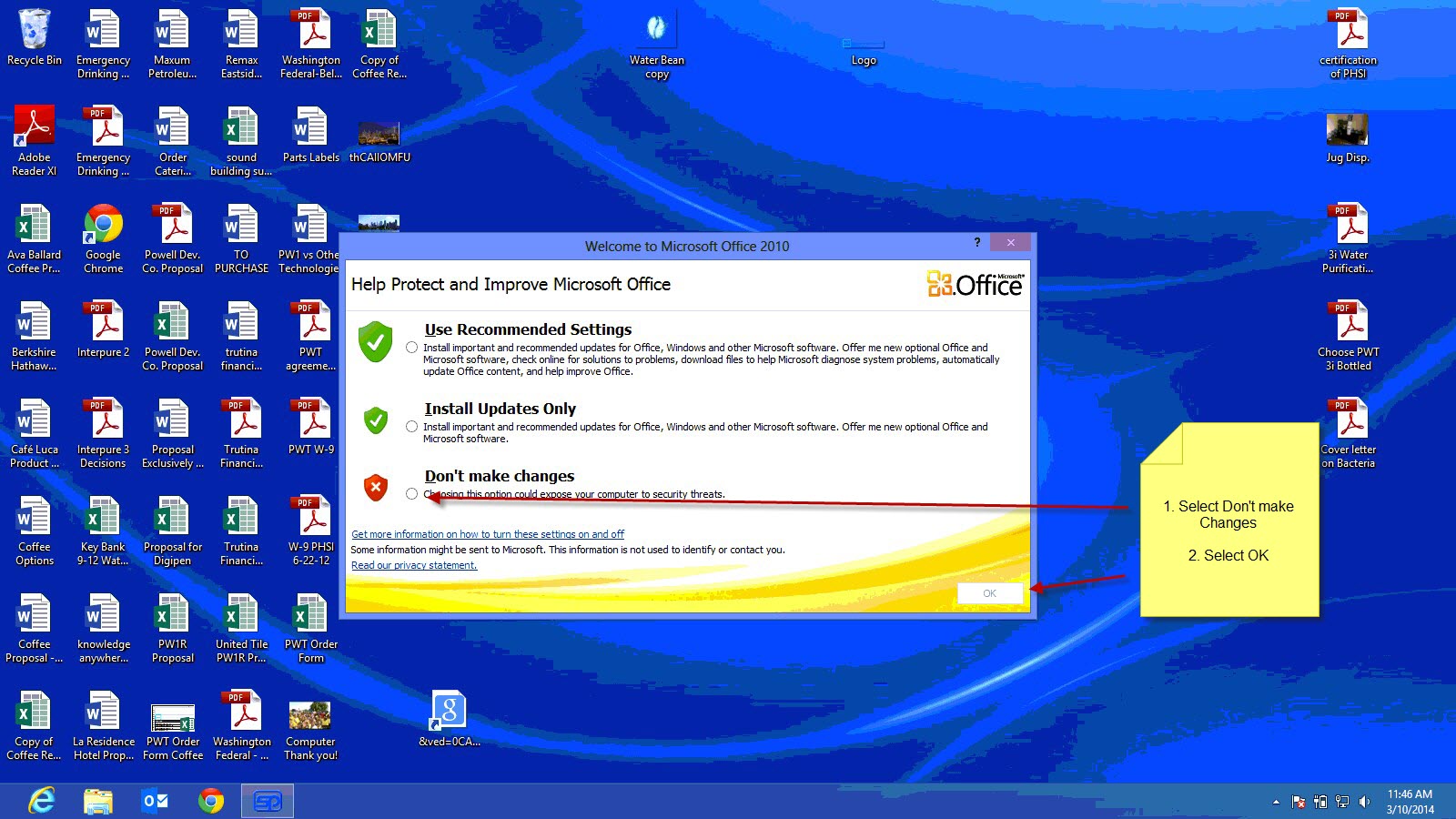
Select Don't make changes
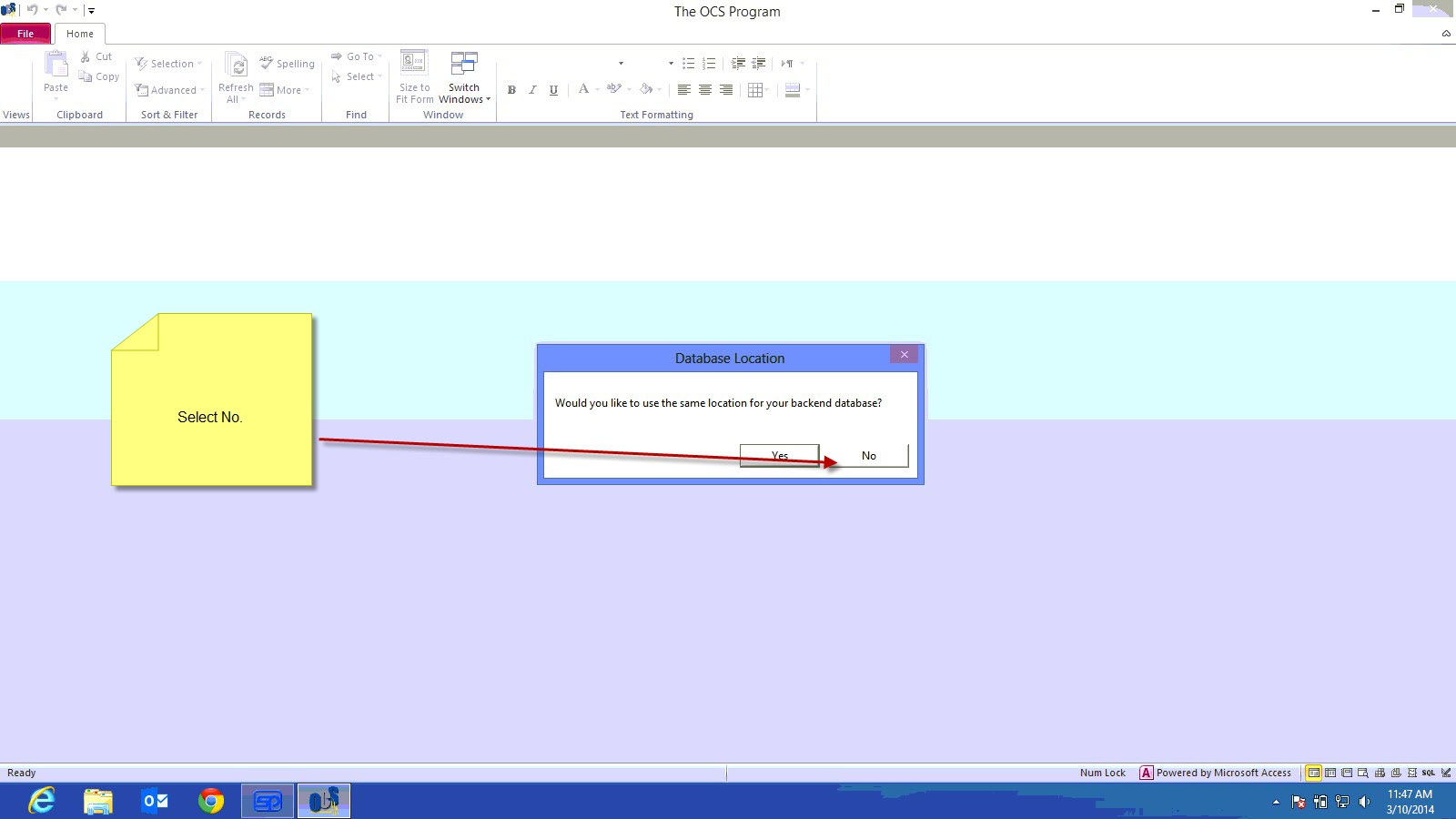
Select No, and then you can select browse and point it to a mapped drive or the local disk depending on where the database resides.